 Minimal Paste
How to paste without formatting on Mac
October 26, 2026
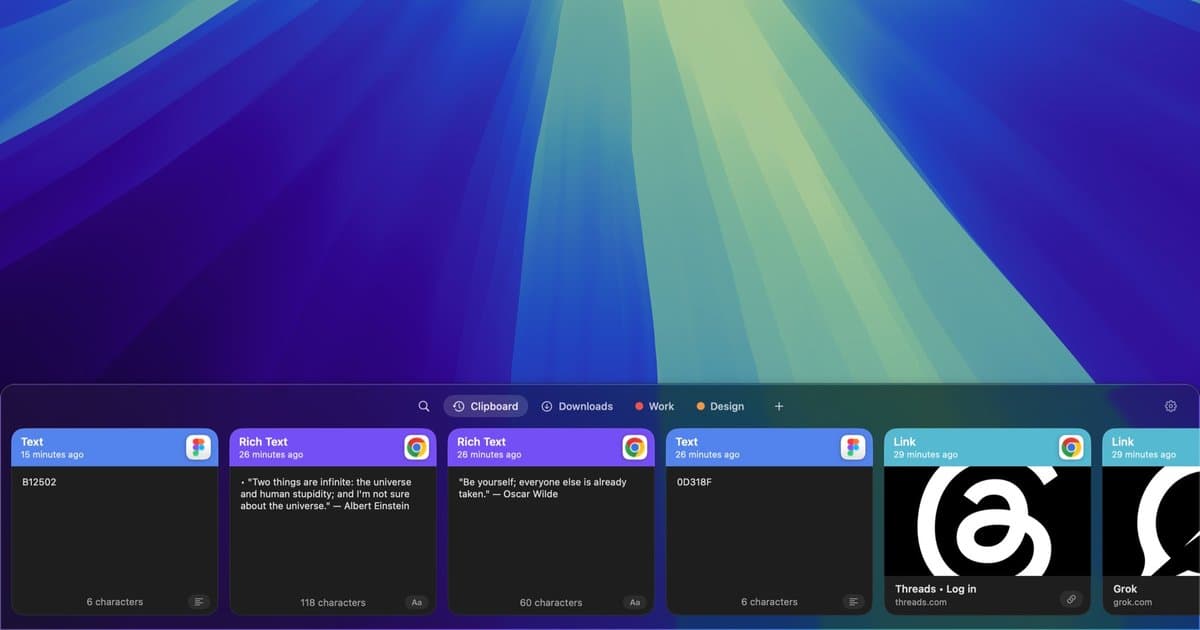
You copy a paragraph from a web page, paste it into an email or a document, and it arrives with the wrong font, a different size, a link color, and sometimes a gray background. What you wanted was just the words.
macOS has a built-in shortcut for this, and most apps follow it. A few popular apps use their own. This guide covers both, plus how to make plain text the default with a clipboard manager. Apple, Google, and Microsoft details come from their own help pages as of October 2026.
The shortcut that works in most Mac apps
Press ⌥⇧⌘V(Option, Shift, Command, and V). Apple's list of Mac keyboard shortcuts calls this Paste and Match Style: the pasted text takes on the style of the text around it, instead of keeping the style it was copied with.
- It works in Apple apps such as Mail, Notes, Pages, and TextEdit.
- Many other apps list the same command in their Edit menu. If you are not sure, open the Edit menu and look for Paste and Match Style. The menu shows the shortcut that app uses.
- If you only use it now and then, choose Edit > Paste and Match Style with the mouse instead.
Apps that use a different shortcut
- Google Docs:Google's shortcut list gives ⌘⇧V for Paste without formatting on Mac.
- Microsoft Word: after you paste, click the Paste Options button that appears next to the text and choose Keep Text Only. Microsoft says this option drops formatting, pictures, and tables, and the text takes on the style of the paragraph you paste into.
- Anything else:check the app's Edit menu. When an app offers plain text pasting, that is almost always where it lives.
Strip formatting with TextEdit
When an app has no plain text paste at all, TextEdit can clean the text first:
- Open TextEdit and choose File > New.
- Choose Format > Make Plain Text.
- Paste, then select all and copy again.
The copy you make from a plain text document has no fonts, colors, or links left in it, so it pastes cleanly anywhere. It works every time, but it is four steps for something you may do dozens of times a day.
A Terminal one-liner
If you keep Terminal open, this replaces what is on the clipboard with a plain text version of itself:
pbpaste | pbcopypbpaste prints the clipboard as plain text and pbcopy puts that text back on the clipboard. After that, a normal ⌘V pastes plain text.
Make plain text the default with Minimal Paste
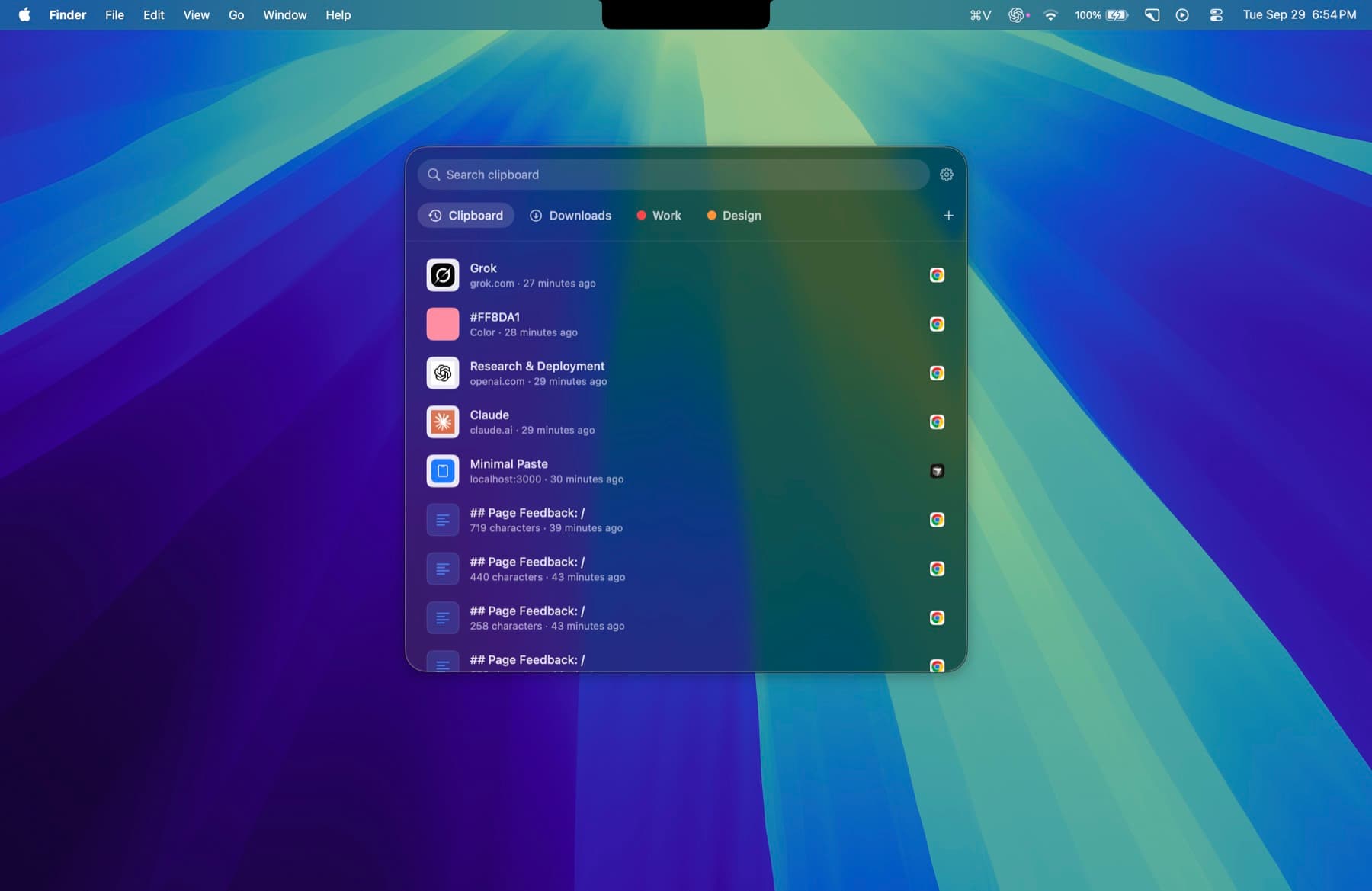
Minimal Paste is the clipboard manager this site sells. It keeps a history of what you copy and has two ways to paste without formatting:
- Press ⇧⌘V to open the shelf, choose a clip, and press ⇧Return instead of Return. That clip goes in as plain text, while Return keeps the original formatting.
- Turn on always paste plain text in Settings, and every paste from the shelf drops its formatting.
Because the history keeps the rich version, you can paste the same clip with its formatting in one place and as plain text in another. One thing to know: the default ⇧⌘V shortcut replaces Paste and Match Style in apps that use ⇧⌘V for it, such as Google Docs. If you rely on that, pick another shortcut in Settings > General.
Minimal Paste needs macOS 14 Sonoma or later. History stays on this Mac, with no account and no sync. It is $9.99 once for 3 Macs, and the full app runs for 7 days with no credit card.
Which method to use
- Now and then, in Apple apps: ⌥⇧⌘V or Edit > Paste and Match Style.
- In Google Docs: ⌘⇧V. In Word: Paste Options > Keep Text Only.
- In an app with no plain text paste: TextEdit or
pbpaste | pbcopy. - Many times a day, or with clips you copied earlier: a clipboard manager with a plain text paste, such as Minimal Paste.
To find older copies too, read How to see clipboard history on Mac. To compare apps, see Best clipboard managers for Mac in 2026 and the alternatives index.
Sources
Try Minimal Paste
$9.99 once for 3 Macs. 7-day trial, no credit card. Clipboard history stays on this Mac.