 Minimal Paste
How to paste screenshots and downloads without opening Finder
October 14, 2026
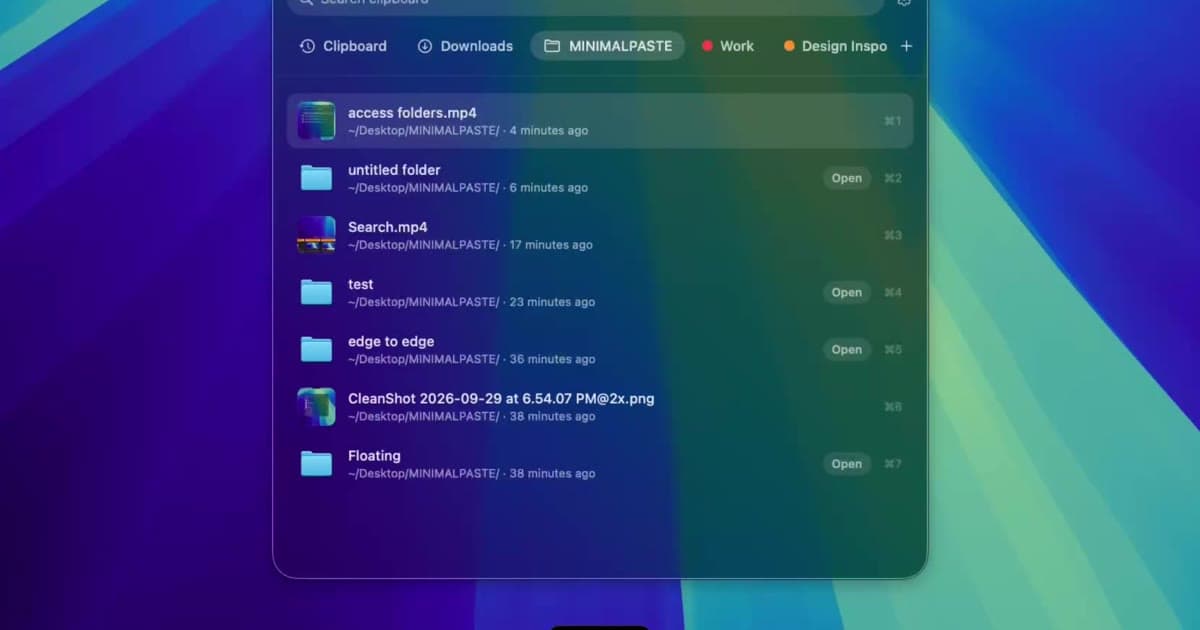
Screenshots land on the Desktop unless you change that in the Screenshot app. Browser downloads land in Downloads. The usual path is: leave the document, open Finder, hunt for the file, drag it in. That is a lot of motion for a file you created ten seconds ago.
Minimal Paste has a Folders shelf for this. You add Downloads, a Screenshots folder, or any other folder. The files show up in the same shelf you already use for clipboard history. Search, select, paste. Finder stays closed.
What the Folders shelf is
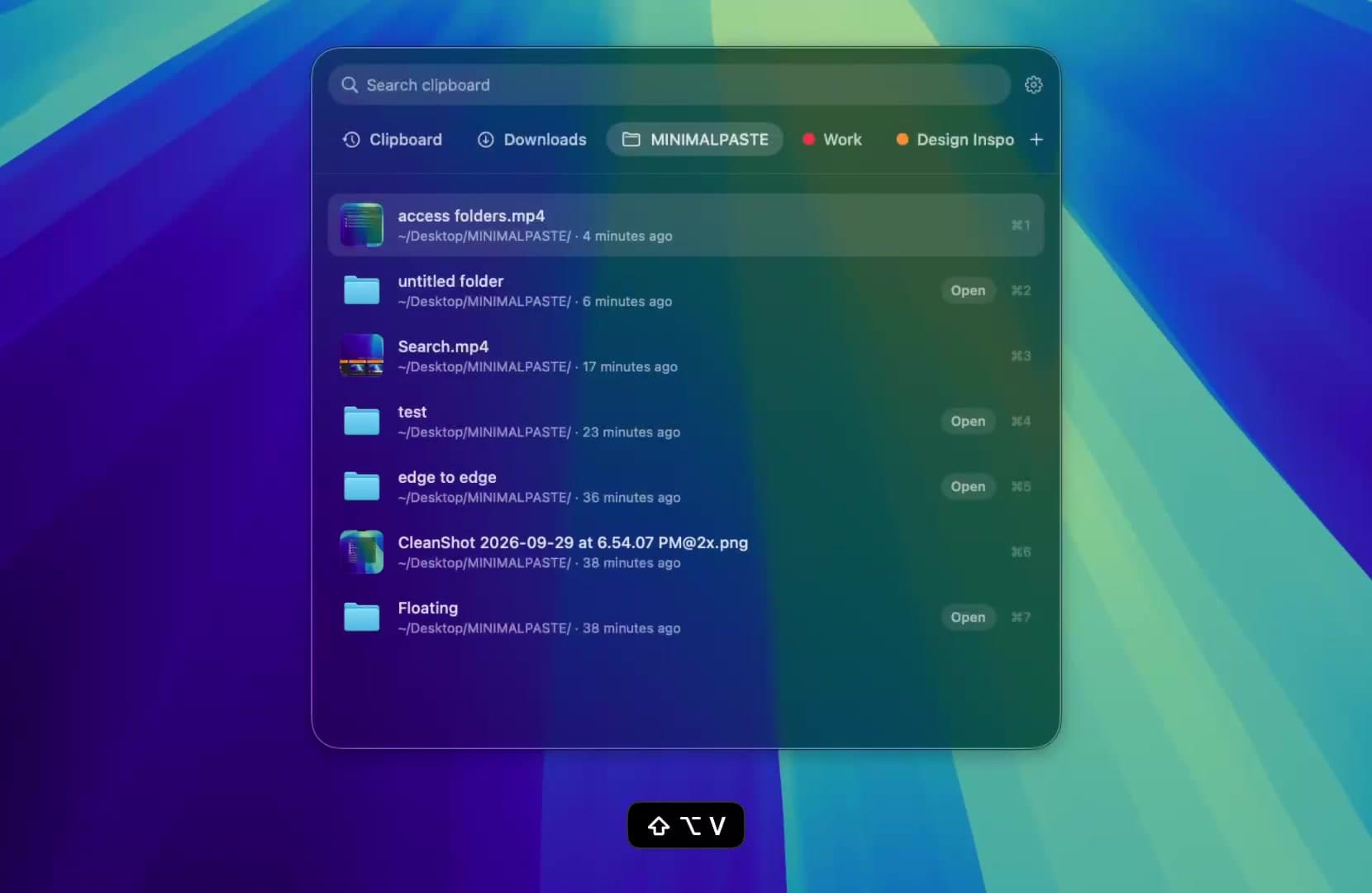
The shelf is the Minimal Paste panel. ⇧⌘V opens it. Besides clips you copied, you can point it at folders on this Mac. Official product copy on this site is specific: add a folder, including subfolders, and paste the files inside. The pricing list calls out Downloads, Screenshots, and any folder.
That is different from clipboard history. History stores what you copied. The Folders shelf reads files that already exist on disk. A screenshot you never copied is still available if its folder is added.
Add Downloads and Screenshots
- Open Minimal Paste and go to the folder list in the shelf.
- Add your Downloads folder.
- Add the folder where screenshots are saved. If you have not changed it, that is usually the Desktop. If you set a dedicated Screenshots folder in the Screenshot app, add that folder instead.
- Turn on subfolders if you sort downloads into project directories.
You can add other working folders the same way: a Client exports directory, a slack of invoice PDFs, or a folder of brand assets. The app is notarized by Apple, and you still choose which folders it can open.
Paste without leaving the app
- Stay in Mail, Notes, Figma, or whatever you were using.
- Press ⇧⌘V.
- Switch to the folder you added.
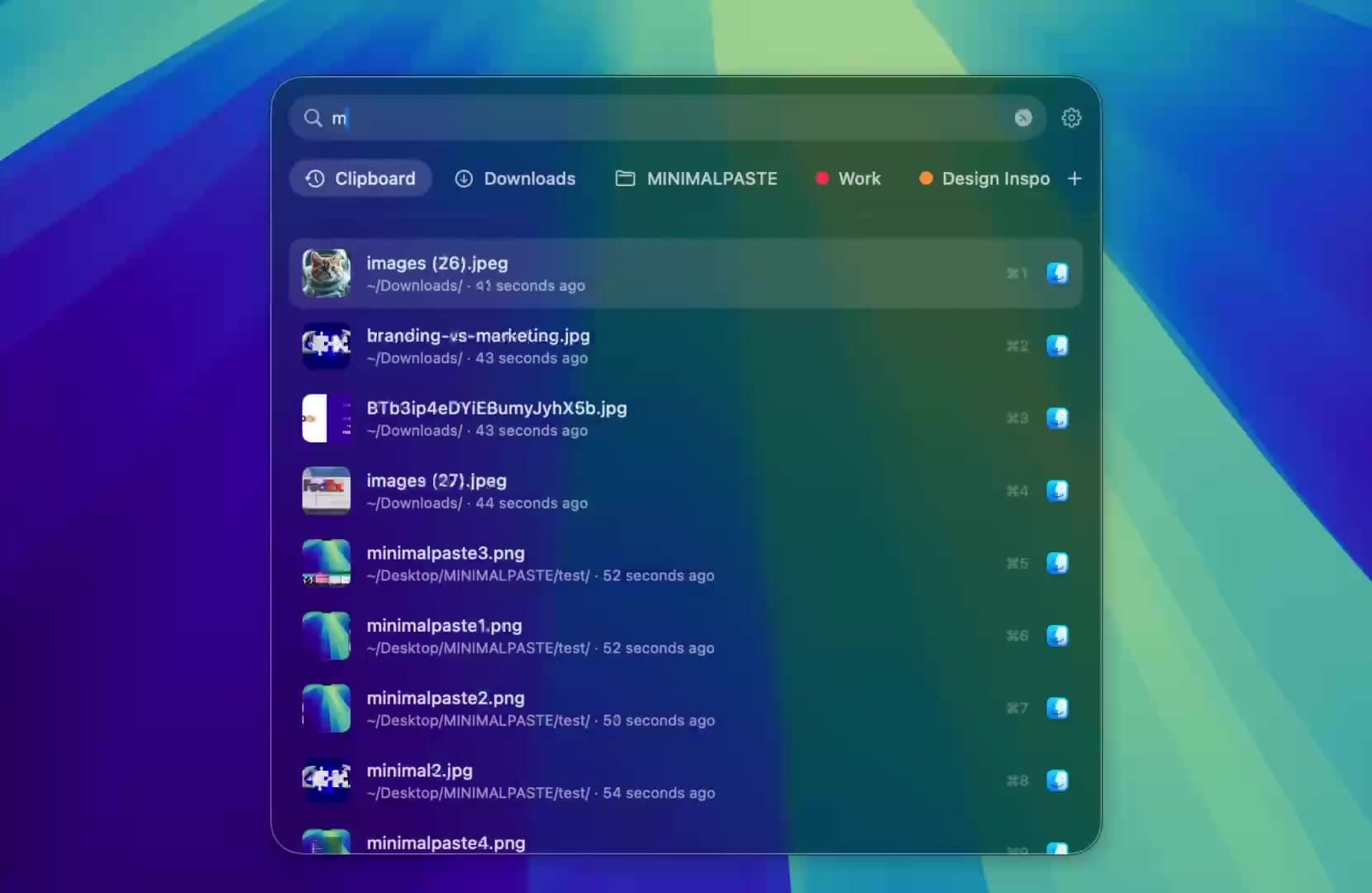
- Type to filter. File names and types are searchable.
- Press Return. The file pastes into the app you were in.
Search covers clipboard items and folder files. If you remember part of a file name, you do not need to scroll. Image, video, and audio format filters are available for folder files, which helps when Downloads is a mix of installers and screenshots.
When this is faster than Finder
- You just took a screenshot and need it in a ticket or a slide.
- You downloaded a PDF and want it in an email, not in a Finder window.
- You keep dropping the same brand folder into Slack or Notion.
- You already have the shelf open for a copied link and need a file too.
Finder is still the right tool for renaming, tags, and bulk file management. The Folders shelf is for the last file you need inside another app.
Keep the shelf out of the way
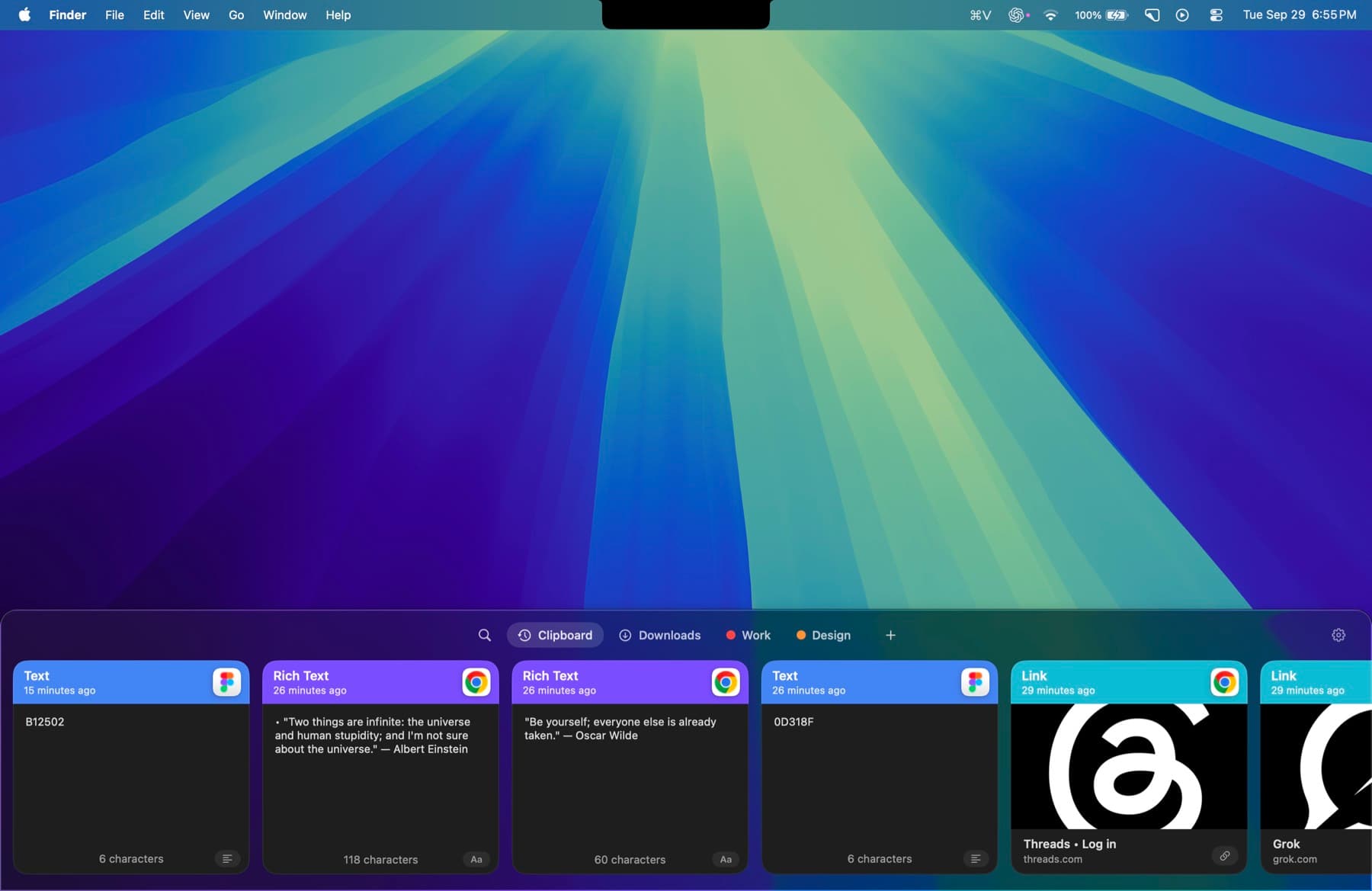
You can put the shelf on the bottom, left, or right, or open it as a window. It can sit on the edge or float. Normal ⌘C and ⌘V still work. The shelf is a separate shortcut, so you are not replacing the system pasteboard.
History stays on this Mac. Adding a folder does not upload those files. There is no account and no iCloud. The 7-day trial does not need a credit card, so you can add Downloads and Screenshots and see if the shortcut sticks before you pay $9.99.
If you are comparing apps first, start with Best clipboard managers for Mac in 2026 or the alternatives index.
Try Minimal Paste
$9.99 once for 3 Macs. 7-day trial, no credit card. Clipboard history stays on this Mac.