 Minimal Paste
How to sync your clipboard between Mac and iPhone
October 28, 2026

You copy an address on your iPhone and want it in an email on your Mac, or you copy a link on the Mac and want it in a message on your phone. Apple already built this in. It is called Universal Clipboard, and most people have it turned on without knowing it.
This guide covers how to set it up, what to check when it stops working, and what to use when you want a lasting history instead of one item at a time. Apple details come from Apple Support pages as of October 2026.
What Universal Clipboard does
Universal Clipboard lets you copy text, images, photos, and videos on one Apple device and paste them on another. It works between a Mac, iPhone, iPad, and Apple Vision Pro. There is no button to press: you copy as usual on one device, and the content appears on the clipboard of your other nearby device.
Apple notes that the item stays there only briefly, or until you copy something else on either device. It is a hand-off for the thing you just copied, not a shared history.
Set it up on Mac and iPhone
Apple lists four conditions. All of them have to be true at once:
- The devices are near each other.
- Each device is signed in with the same Apple Account.
- Each device has Bluetooth and Wi-Fi turned on.
- Each device has Handoff turned on. It is on by default.
To check Handoff:
- Mac (macOS Ventura 13 or later):open System Settings, click General, then AirDrop & Continuity (called AirDrop & Handoff on some versions). Turn on Allow Handoff between this Mac and your iCloud devices.
- iPhone or iPad:open Settings, tap General, then AirPlay & Continuity (or AirPlay & Handoff), and turn on Handoff.
Copy and paste across devices
- On your iPhone, copy text, a photo, or a link the way you normally would.
- On your Mac, paste with ⌘V or Edit > Paste.
It works the same in the other direction. Large items such as photos and videos can take a moment to arrive, so if a paste looks empty, wait a second and try again.
If it is not working
Apple's own checklist is short:
- Install any available software updates on the Mac and the iPhone.
- Restart both devices.
- Go back through the four setup conditions, especially the same Apple Account on both and the devices being close together.
Older hardware also has to meet Apple's Continuity system requirements, which are listed on Apple's Handoff support page.
When you need history, not one item
Universal Clipboard only carries the latest copy, and only for a short time. If you want to go back to something you copied an hour ago, you need a clipboard manager.
- History on iPhone and Mac together: apps such as Paste and PastePal have iPhone and iPad apps and can sync history through iCloud. Paste is a subscription at $29.99 a year or $99.99 to pay once, and PastePal is a $14.99 one-time App Store purchase.
- History on your Mac only: a Mac clipboard manager keeps everything you copy on the Mac, while Universal Clipboard still handles the occasional item from your phone.
Where Minimal Paste fits
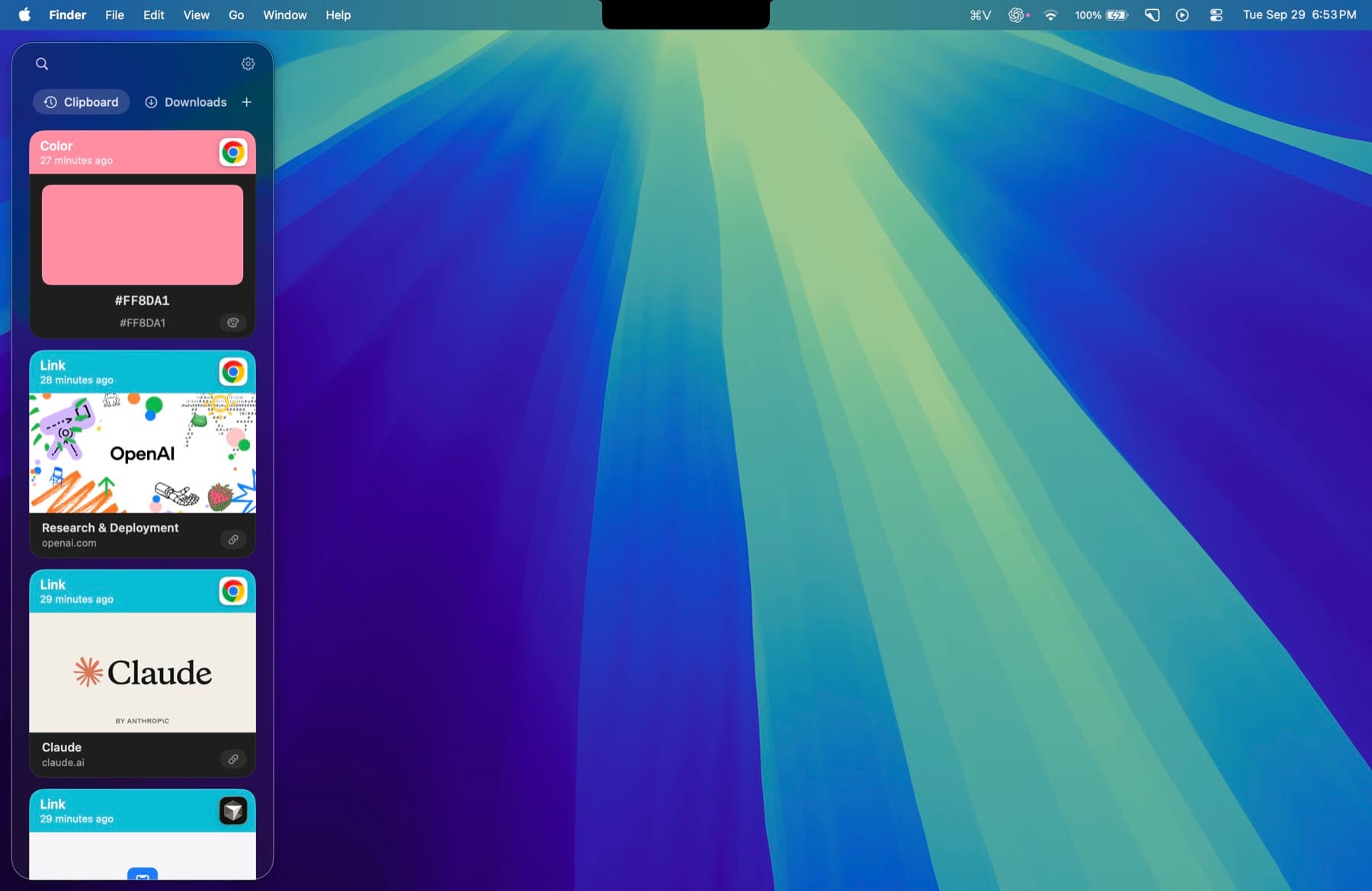
Minimal Paste is the clipboard manager this site sells, so to be clear up front: it is a Mac app only. It has no iPhone app and does not sync anything. History stays on your Mac, with no account and no iCloud. If syncing history to your phone is the main thing you want, Paste or PastePal is the better pick.
If most of your copying happens on the Mac, Minimal Paste gives you a searchable history in a shelf you open with ⇧⌘V, plus files from folders you choose, like Screenshots and Downloads. Keep Universal Clipboard on for the odd item from your phone, and use the shelf for everything else.
Minimal Paste needs macOS 14 Sonoma or later. It is $9.99 once for 3 Macs, and the full app runs for 7 days with no credit card.
Quick answer
- One item at a time between Mac and iPhone: Universal Clipboard. Same Apple Account, Bluetooth and Wi-Fi on, Handoff on, devices close together.
- Full history on both devices: a syncing app such as Paste or PastePal.
- Full history on the Mac, no account or sync: Minimal Paste.
For more on history, read How to see clipboard history on Mac and Best clipboard managers for Mac in 2026. To paste copied text cleanly, see How to paste without formatting on Mac.
Sources
Try Minimal Paste
$9.99 once for 3 Macs. 7-day trial, no credit card. Clipboard history stays on this Mac.